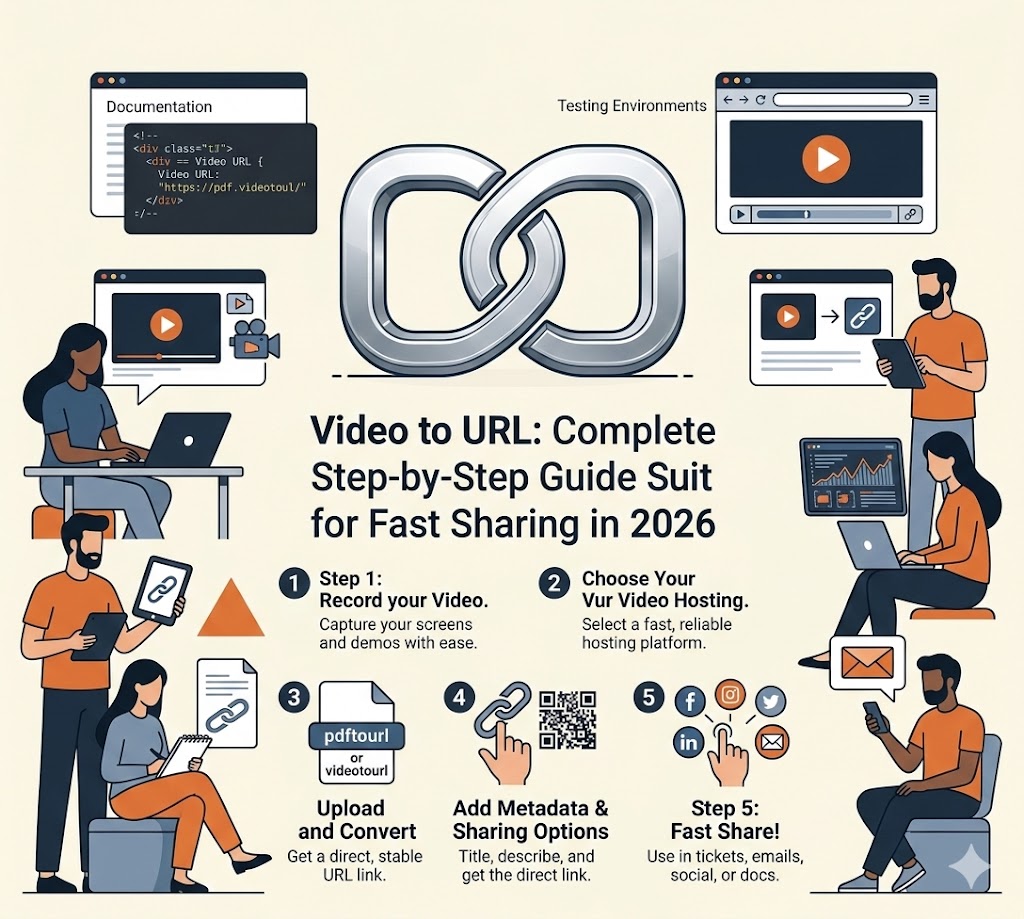
How to Convert PDF to URL: Complete Step-by-Step Guide for 2026
Learn how to convert PDF to URL in minutes. This 2026 guide covers PDF upload workflows, URL types, SEO basics, and sharing tactics for documents, reports, and digital assets.
If you are still sending PDF files as email attachments or messaging large documents directly, you are creating unnecessary friction for your recipients. A clean PDF to URL workflow turns any PDF document into a shareable link you can distribute instantly across websites, emails, social media, and chat platforms.
This guide explains exactly how to go from PDF file to optimized URL, with practical SEO steps you can apply right away.
What Is "PDF to URL"?
PDF to URL is the process of:
- Uploading a PDF document
- Hosting it on a cloud storage or document platform
- Receiving a public or private URL
- Sharing or embedding that link anywhere
Instead of emailing heavy files or dealing with attachment size limits, you maintain one canonical link and update the source document centrally.
Why a PDF URL Workflow Matters
Operational Benefits
- Instant sharing without attachment size limits
- Lower email bounce rates and delivery issues
- Easier version control when documents need updates
- Better analytics than traditional file attachments
- Centralized document management and access control
Growth Benefits
- More places to distribute the same document
- Better indexing opportunities for search engines
- Cleaner tracking with UTM parameters
- Higher reuse across landing pages and resource libraries
- Improved user experience with instant access
Step-by-Step: Convert PDF to URL
Step 1: Prepare the PDF File
Before upload, make sure your document is ready:
- File size: Compress images and optimize for web if needed
- Content: Review for sensitive information and remove if necessary
- Metadata: Add document properties (title, author, keywords)
- Naming: Use descriptive filenames (for example,
pdf-to-url-guide-2026.pdf) - Accessibility: Include alt text for images and proper heading structure
Step 2: Upload and Process
Upload your file to your hosting platform. During processing, most tools will:
- Generate a unique URL for the PDF
- Create preview thumbnails if supported
- Optimize for fast loading and downloading
- Provide sharing and embedding options
Step 3: Choose the Right URL Type
Different use cases require different link types:
| URL Type | Best Use Case | SEO Impact | |----------|---------------|------------| | Public page URL | Resource libraries, documentation | Strong when page context is optimized | | Direct file URL | Downloads, email sharing | Moderate SEO with proper metadata | | Embed URL | Website content, blog posts | Helps engagement and page dwell time | | Private token URL | Client documents, internal sharing | Controlled access, limited indexing | | Preview URL | Quick previews, portfolios | Better user experience, can reduce downloads |
Step 4: Add Metadata and Context
A PDF URL alone is often not enough. Add:
- A descriptive page title if hosting on a landing page
- A clear description with primary and secondary keywords
- Document metadata (title, author, subject, keywords)
- Supporting content around the PDF link
- A visible call-to-action near the download link
Search engines evaluate both the PDF metadata and surrounding page context.
Step 5: Distribute and Track
Publish your PDF URL across:
- Resource libraries and documentation
- Email newsletters and campaigns
- Social media posts and profiles
- Lead magnet download pages
- Client onboarding flows
- Internal knowledge bases
Add UTM tags so you can measure which channel drives the most downloads and conversions.
SEO Checklist for PDF URLs
Use this quick checklist before publishing:
[] URL slug or filename includes target keyword (pdf-to-url)
[] PDF metadata includes title, author, and keywords
[] Page title describes the document clearly
[] Meta description explains the benefit and content
[] PDF has supporting context or summary text
[] FAQ section answers common user questions
[] Internal links point to related resources
[] File size is optimized for fast loading
URL to PDF: Converting URLs Back to PDF
Sometimes you need to reverse the process—converting a URL to PDF. Common scenarios include:
- Saving web pages as offline PDF documents
- Creating PDF archives of online content
- Generating PDF reports from web dashboards
- Capturing web forms and receipts as PDFs
How to Convert URL to PDF
-
Browser Print Method: Open the URL in your browser, press Ctrl+P (Cmd+P on Mac), and select "Save as PDF"
-
Online Tools: Use dedicated URL to PDF converter services that capture full web pages as PDF documents
-
Developer Tools: Use libraries like Puppeteer, Playwright, or headless Chrome for automated URL to PDF conversion
-
Browser Extensions: Install extensions that add "Save as PDF" functionality to your browser
Common Mistakes to Avoid
1. Uploading Without Document Metadata
A PDF without proper title, author, and keyword metadata is harder for search engines to understand and index effectively.
2. Using Generic File Names
document_final_v2.pdf provides no context. Use descriptive names like pdf-to-url-guide-2026.pdf for better discoverability.
3. Ignoring File Size
Large PDFs load slowly, especially on mobile devices. Compress images and remove unnecessary elements before uploading.
4. No Download Tracking
Without UTM parameters or event tracking, you cannot measure which placements generate the most downloads.
5. Forgetting Access Control
Public URLs are indexable by search engines. Use private URLs for sensitive client documents or internal resources.
Recommended Workflow for Teams
For repeatable execution, standardize this process:
- Create and finalize the source PDF document
- Optimize file size and add metadata
- Upload to your PDF-to-URL platform
- Generate public and direct download links
- Publish on an optimized resource page
- Distribute with channel-specific UTM tags
- Monitor download analytics weekly
This single workflow can support marketing teams, sales enablement, customer support, training departments, and content libraries.
Advanced: PDF URL Strategies by Use Case
Lead Magnets and Ebooks
- Use landing pages with preview excerpts
- Gate behind email capture forms
- Track downloads by campaign and source
- Update centrally without changing the URL
Technical Documentation
- Organize in hierarchical URL structures
- Use descriptive, versioned filenames
- Implement search functionality
- Maintain a central document index
Client Deliverables
- Use private, token-based URLs
- Set expiration dates for access
- Track download activity per client
- Update files without changing links
Public Resources and Whitepapers
- Optimize PDF metadata for search
- Create supporting landing pages
- Add schema markup for documents
- Build internal linking from relevant pages
Final Takeaway
The best PDF to URL strategy is not just technical upload. It combines hosting, document optimization, and measurable distribution. If you build this as a repeatable system, every PDF becomes a scalable SEO and growth asset instead of a static file attachment.
Whether you need to convert PDF to URL for sharing or reverse the process to convert URL to PDF for archiving, having a documented workflow ensures consistency, professionalism, and better results across your organization.